Configuration
The Configuration tab is your control center for how the agent behaves and interacts with visitors.
Chat Settings
Control how your agent greets and interacts with visitors.
Welcome Message
Your welcome message is the first thing visitors see when the chat opens. Make it inviting and relevant.
- Example: "Welcome to Aimdoc! How can I help you today?"
Pop-up Message
Grab attention even when the chat widget is collapsed. This message appears next to the minimized widget icon.
- How to Enable: Toggle Pop-up Message to On.
- Keep messages short (max 80 characters).
Contextual Pop-ups
AI-generated messages tailored to the page your visitor is currently viewing.
- How to Enable: Toggle Contextual Pop-ups to On.
- You can modify generated pop-ups in the Knowledge tab (under specific pages).
Auto-open
Make the chat widget automatically open after a specified duration.
- How to Enable: Toggle Auto-open to On.
- Duration: Set delay in seconds (e.g.,
5).
To override auto-open (or hide the widget) per page or user segment from your app, see Display options.
GDPR Opt-In
Require visitors to opt-in before starting a conversation.
- How to Enable: Toggle GDPR Opt-In to On.
- Recommended for visitors in the EU.
Context & Navigation
Enhanced context features and navigation capabilities.
Visitor Location
Enable location-based context for more personalized responses (e.g., timezone-aware scheduling).
Page Awareness
Enable the agent to understand and reference the content of the specific page the visitor is currently viewing.
Smart Navigation
Allow the agent to navigate visitors to relevant pages on your website during the conversation (e.g., redirecting to a pricing page when asked about cost).
Links
Direct visitors to helpful resources right from the chat window. Links display in the side panel of the agent screen.
Conversation Starters
Kickstart conversations with predefined questions.
Default Starters
Set frequently asked questions to reduce typing friction (e.g., "What is your pricing?").
Contextual Starters
When enabled, visitors see page-specific starters based on the content they're viewing. Aimdoc generates these automatically during training.
AI Follow-ups
Automatically generate follow-up questions to keep the conversation going and drive engagement.
Escalation Buttons
Configure buttons that help escalate or redirect conversations when needed. These allow visitors to proactively trigger specific actions, such as connecting to a human agent.
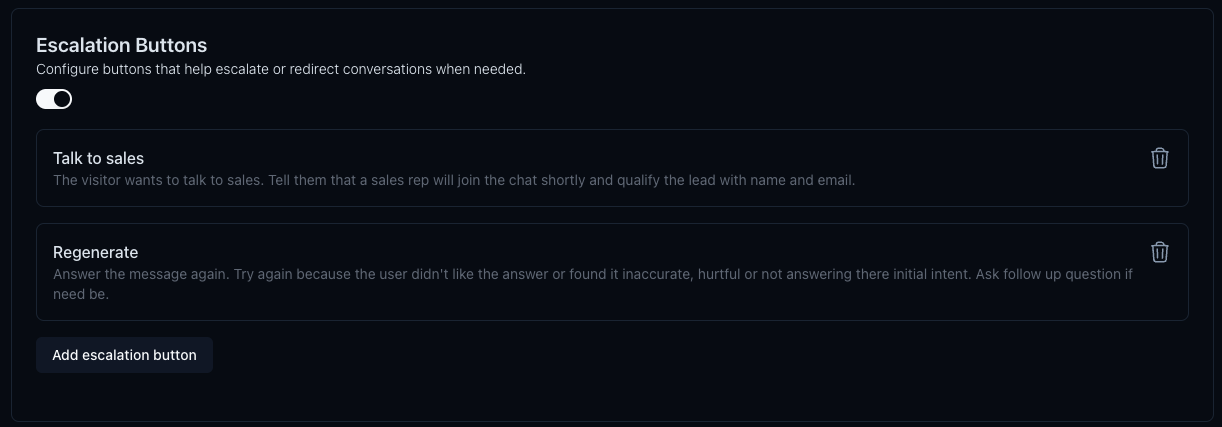
Common Examples
"Talk to Sales"
- Purpose: Connect visitors directly to a sales rep.
- Tip: Enable on high-intent pages to convert leads faster.
"Regenerate"
- Purpose: Allow visitors to request a revised response if they aren't satisfied with the first one.
Configuring Escalations
- Click Add escalation button.
- Label the button (e.g., "Speak to a Human").
- Choose the action (e.g., Notify Sales, Live Chat Handover).
Security
Rate Limiting
Protect your agent from abuse by limiting message frequency.
- Example: Limit to 20 messages every 240 seconds.
Rate Limit Message
Customize the message displayed when a visitor hits the limit.
Privacy & Legal
Disclaimer Message
Display a custom message (e.g., legal disclaimer) when users start a chat.
Privacy Policy Link
Add a URL to your privacy policy, which will be linked in the disclaimer.
Visibility
Configure when and where your agent should appear on your website.
Visibility Rules
Add up to 10 rules that show or hide the agent based on:
- URL — match a path or pattern (for example, hide when the URL contains
/investors) - Country — match the visitor's country using ISO country codes (for example, show only in the United States and Canada)
Each rule has an action (Show or Hide) and a type (URL or Country).
How rules combine:
- Any matching Hide rule hides the agent
- Show rules act as an allowlist for that dimension. If you add country show rules, the visitor's country must match one of them. If you also add URL show rules, the URL must match as well
- If the visitor's country cannot be determined, country show allowlists fail closed (the agent stays hidden) and country hide rules do not match
- With no visibility rules, the agent is available everywhere the Deploy visibility toggles allow
Show globally after engagement
When enabled, once a visitor starts or resumes a conversation the agent can remain available across pages that would otherwise fail URL visibility rules for the rest of that engagement. Country show/hide rules still apply — this setting does not bypass country geofencing.
Also see website and mobile visibility toggles on Deploy.